

Templates
Send from a template
A template keeps a PDF with its signer roles and fields. Add the people. Send the agreement. Send one agreement at a time, or many at once from a CSV file.
For everyone on the team
Templates lists the reusable layouts in your workspace. Ready to use holds the ones you can start an agreement from. Archived keeps old ones for the record.
Send one agreement from a template
- In the sidebar, choose Templates.
- Choose Use on a template. Or open it. Choose Use & send. You can also choose Create. Choose a template under From a template.
- A new agreement opens with the template's documents and fields already in place. The page says Send “…” with the template's name.
- For each role, enter the person's Full name and Email. Choose their Signing language.
- Want people to see another title? Change the Document title (optional).
- Choose Send for signature. Or choose Save as draft to send it later.
Each recipient gets their own one time signing link, in the template's order.
What a template's page shows
Open a template to see:
- Signing route: who signs, in this order.
- Fields: every field placed on the document, with its type, page, role and whether it is required.
Owners and admins also see Edit fields, and under More template actions, Rename and Archive. See Create a template.
Send to many people at once
Bulk send on a template's page sends one agreement per row of a CSV file. You see every row before sending.
- Open the template. Go to Bulk send.
- Prepare a CSV file with a column for each person's details (the panel's Columns list names them), and optional columns to fill fields.
- Choose your file under CSV file. Choose Upload and preview.
- Check the rows. Each one shows Ready to send, Needs fixing or Duplicate. Rows that need fixing are skipped. You can fix them in your CSV for a new upload. You can also start the others now.
- Choose Send 12 agreements (the button counts the rows ready to send). Confirm.
Members can upload and preview. An owner or admin sends or discards the batch. They can choose Cancel batch to stop rows that have not gone yet. Agreements already sent stay with their people. Need to void them? Do it one by one.
Locked and archived templates
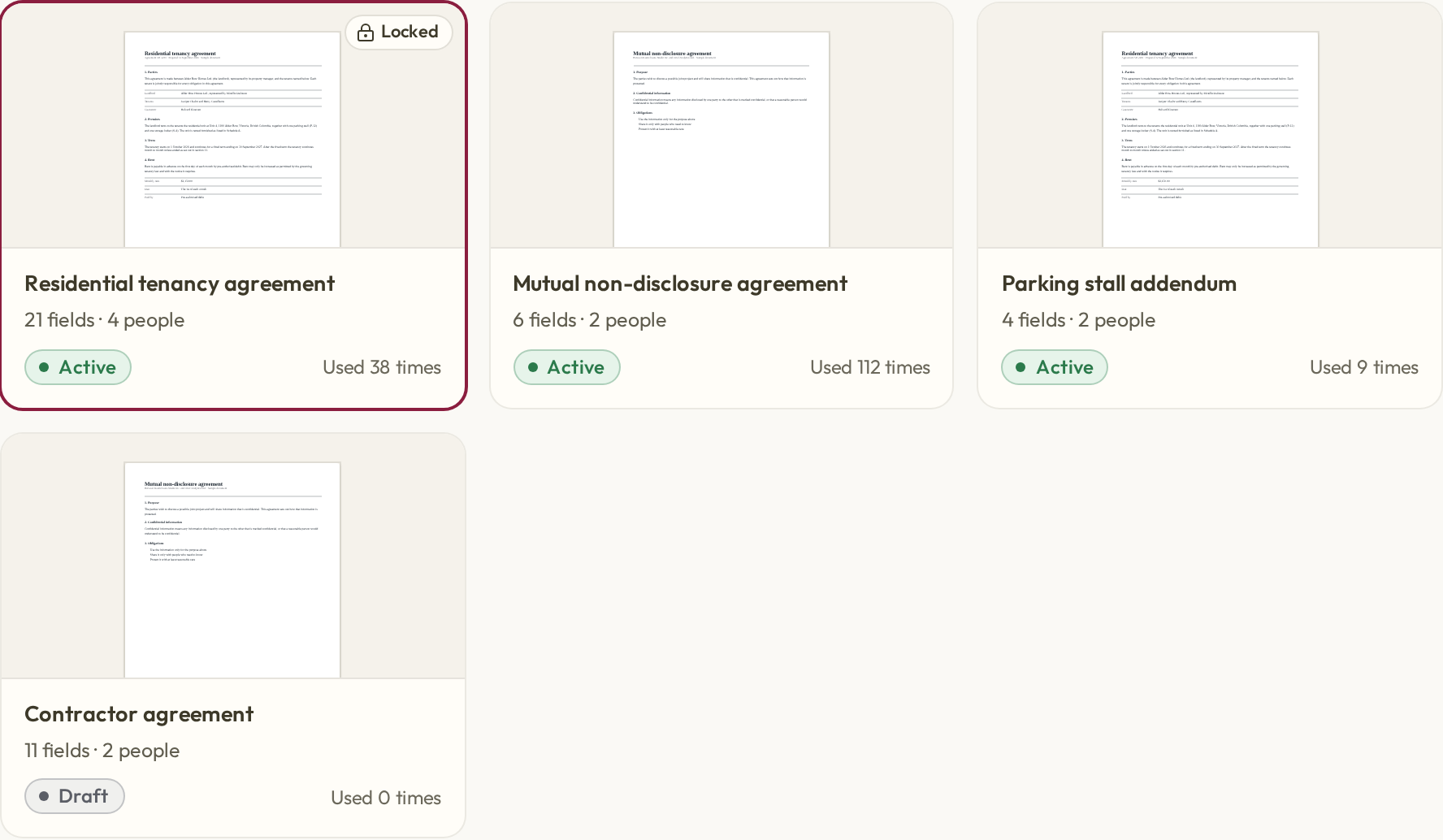
- This template is locked: its fields and PDF cannot change. You can still use it to send agreements.
- This template is archived: you can still read it. It cannot be edited or used for new agreements. Agreements already sent from it are not affected. Owners and admins can choose Restore to make it ready to use again.
Keep templates in order
On the Templates page, Governance opens Template governance: the team's folders, template owners and locked wording. Owners and admins make the changes there, for example locking a template's wording with a reason, or unlocking it.